Notes
The ridge loop keeps to the trail the rangers reopened in May.
The valley route stays below the snow line all year.
Both start at the shelter and end at the covered terrace.
Leaf core product
Try Leaf chrome and the default package on one synthetic page. Optional widgets have focused working pages in the package catalog.
Choose a view below. Contents and Page Map lead to each feature. Each sample’s
eyebrow names the lf-* elements it exercises.
lf-ask · lf-options · lf-option
An lf-ask puts a heading and context around the choice below.
On me lists everything waiting on you: open obligations,
a question in a thread among them (such as the gallery thread about a
pasted image), and updates whose reply failed and need sending again. Each
is answered where it asks: a widget's own controls, or a reply in its
thread.
The map's obligation is widget:bg-choice whether or not it
has an lf-ask wrapper. Choose a map, then read its current
record: answer.value contains option ids, and
prompt.target names the surrounding context.
Tab into this sample: 1 appears beside its button. Press 1: the note gets focus, the hint disappears, and digits type normally. Leave the sample: 1 no longer focuses the note.
Open Keyboard shortcuts in the leaf's menu and turn off Quick keyboard shortcuts. Letters, numbers and symbols now keep their ordinary meaning: c leaves the page alone, and the note sample above loses its 1 hint. Its button and text field still work with Tab, Enter and Space. Reload to check the preference stays off, then turn it on to restore the hints and keys.
Leaf's controls stand in one panel hovering over the foot of the page. In the window below, press the panel's leaf for the menu, and its field to comment. Choose Fold to the leaf in the menu, then press the leaf to unfold it: the mark stays visible and travels with the panel's outline. Press . twice quickly to reverse it in flight. With reduced motion, both take their final place at once.
The covered terrace is a short walk from the shelter.
The leaf's menu also holds Versions, Keyboard shortcuts (?), and under Navigate All pages when another Leaf page is live; Page Map is g then Shift+P. The empty comment field reports the current keyboard walk or a useful command result where it would show the agent's status.
Follow the Resume writing sample, then use browser Back. The viewport and focus return to this link; press c to comment on the link. Forward returns to the sample.
Rest the pointer on a link here, Tab to it, or hold a finger on it: a preview stands beside it with what it points at, and the page stays where it is. A press, Enter or a tap still follows the link; letting go of a held finger leaves the preview standing. The stove decision shows its answer and the flask question its options waiting on you, the trailhead, settled when the page was written, its options with the pick checked; the packing board lists its columns, the session table its first rows and the thread about it, the On me steps their first items, the code sample its first lines, and the pasted screenshot its picture. Leaf's site is another document, so it keeps only the browser's status bar.
Cycle the short status messages. The following text stays in place because
data-room reserves their width from first paint.
Ready Following text
lf-suggestion · lf-old · lf-new
“Accept” applies the proposed text; “Reject” keeps the original. “Undo” reverses either decision.
Replace. The sample meeting starts at
Pick a route inside the proposal (the group is closed, so it
offers only its two routes, with no field for another), accept the
proposal, then use its “Undo” control. The proposal becomes undecided
again; your route remains chosen. Reload to check that both decisions
survive.
Keep the practice walk indoors.
Take the practice walk outside.
lf-draft
Drafts render Markdown as readable prose. Clicking the words, or the pencil on the box’s edge, which shows while the pointer is over the box, opens the exact source; the check saves it, and the cross or Escape discards the unsaved edit. The box keeps its size while editing, and these controls stay when annotations are hidden. Copy, beside them, copies its Markdown. Press z to undo a saved edit.
Write a different invitation here. Try a few lines to see the editor grow.
Write a **different invitation** here. Try a few lines to see the editor grow.
Delivered means the saved edit entered an agent turn. The receipt follows that edit through delivery and response. The panel's status describes the agent’s overall availability, including work on other parts of the page.
The sample workshop is in the blue room.
The sample workshop is in the blue room.
Each reaction reaches the agent as feedback on a passage or a reply. The comment field keeps Dictate or Send beside its text. Other responses opens a picker for Suggest and reactions without moving the field; an agent reply has its own corner control for reactions.
1 · 👍 · keep. The spare key is with reception.
2 · ❌ · change. This sample claims Tuesday follows Thursday.
3 · 🤔 · clarify. Bring the thing from the other place.
4 · ✂️ · shorten. At this point in time, we can now begin.
5 · 🔎 · support. The exercise involves a map.
6 · 🎯 · prioritize. The side entrance closes early.
lf-ask · lf-options · lf-option
The meeting point is decided. Open Settled: At reception to inspect the alternatives, then close it. The spacious cards return to one disclosure line, leaving no empty card space before Permission.
lf-ask · lf-options
Choose Book the shelter, then press it again to reopen the request. Other questions can stay unanswered. The pick stays through unrelated page edits until its author explicitly restates the request.
Reserve the park's covered shelter for the sample group's Saturday lunch.
The panel's comment field starts a thread about the whole page.
In a browser with speech recognition, every empty comment or reply box offers a microphone where Send will stand. The panel's comment field, a passage's comment box, and a thread reply all use the same control.
Press l, then click Street map. Leaf opens a
comment about lf-option · bg-choice-street without choosing
the option. Press Escape to leave design mode. On a touch
screen, choose “Design mode” under Annotations in the leaf's menu, tap
“Street map”, and tap the ✕ at the end of the panel's row to leave.
Press w and draw across this paragraph or the space around it: the comment anchors here, because a stroke in empty space belongs to the nearest element on screen. Every further stroke joins the same drawing, wherever it starts.
“Capture area” attaches an image of part of the page to a comment.
Align current item at top moves the block you are reading to the window's top.
Select a passage here, then press Escape and read somewhere else. Press g and v, or under a finger choose Restore selection under Navigate in the leaf's menu: the page reveals the passage and selects the same words with the same working end. A live revision can replace their markup; removed or ambiguous words report that the passage is unavailable. Selecting inside an editor keeps its native meaning. g then V still opens versions.
Resume writing takes you back to words you put away without sending.
The revised message belongs here.
The revised message belongs here.
To carry unfinished words to another item, press s and choose the paragraph above, then type without sending. Move focus to this next item and press c: the box opens on this item with the same words. Sending attaches the comment here. A destination that already holds a draft keeps its own words and leaves the first draft available.
Keep a comment open and scroll its passage out of view: the field follows it away with its draft intact. Scroll back: the passage and editor return together, including after one large wheel jump. Try the same inside a scrolling pane, then scroll the surrounding page too. Press Escape, then g and i: the original passage, words and caret return for continued writing.
Open Threads, expand the lunch question, and leave its empty reply focused. Restamp this gallery with a prose change, then with a changed inline module: each revision arrives automatically and keeps the reply focused. Writing in it holds a revision for review instead, so leave it empty to inspect automatic arrival.
A passage's comment box and a thread card both move by their edge.
lf-options · lf-board · lf-card
Each proposal is answered beside its case, and the board's cards show those answers. Pick Next for the flask, and its card moves to Next; drag the stove's card to Drop, or grab it and press the arrows, and its section's pick follows. Undo takes either gesture back in both places.
The old stove takes ten minutes to boil a litre.
One flask ran dry on the last long walk.
Choose a view to open its thread in this practice page's Leaf panel. The controls, messages, search, and unread state are live. Reset restores the seeded discussion after trying a reply or changing a thread.
Click a Sample width choice, then use Tab and the arrow keys: the keyboard cue encloses the label, while pointer selection keeps the native radio mark. Text-entry fields retain their focus cue.
A title still pending. The workshop schedule leaves lunch open. Open Threads to view it.
An existing thread. The sample agenda has room for one more topic. Open the speech-bubble button to read the question.
A resolved thread. The room has a projector. Its earlier question is resolved.
A summarized discussion. The workshop planning thread keeps its earlier decisions in a summary.
Progress messages. Show the folded checks from the answer’s header, then hide them again.
Each thread has a short title the agent chose; open one to read its messages. With Threads closed, a thread opens inline beside its passage.
lf-conversation-workspace
This package reader shows the same conversation as Conversation, Shelf, or Feed.
Open Threads in the sample. Read the checks table, then open Deploy log by click or keyboard. Both are ordinary HTML carried by the reply, without a widget wrapper.
The release is ready. Open Threads to read the checks and log.
New information. Have the agent add a message after the page opens: its status-line notice also reaches the live region without moving focus. A new question, response failure, or return to page activity uses that same line. Replies still unread when the page opens are announced once on arrival; rereading a stage change or tool activity creates no new notice.
An unfinished reply. Open a thread inline or in Threads and begin a reply.
Open Full view, then On me, and reply to the environment question: the question leaves On me. Its entry opens the page thread. Reset restores the question.
The build is ready. The page thread holds the environment question.
A clean passage. Select some of these words, or Alt-click this paragraph, to start a comment. Type into the floating field and send it.
Generating title until the agent names it.
A revised passage. Select “first draft” and send a comment, then select “early estimate” and send another. Keep both threads open and have the agent replace both phrases in the paragraph below. Each thread stays attached to that paragraph, without an answer being invented. Its Thread control opens the same conversation; a reply choosing new words can give it a precise passage again.
The first draft uses an early estimate for the rollout.
A passage in a wide block. Select the words in the
description value below. The comment field follows the
passage's inline start while standing clear of the code block. Send a
comment: its thread keeps that attachment.
const command = {
  title: "Keep",
  description: "keep the active card",
};
Rewriting your own words. The thread on the line below holds a message of yours and the agent's answer.
The kickoff runs from nine to eleven.
Markdown as you type. Every box Leaf gives you to write
in shows the draft the way the sent message will read. Type
`code`, **bold**, *emphasis*,
~~struck~~ or [a link](https://leaf.page), or
begin a line with # or >: the words take
their style and the syntax steps aside until the caret enters it, so every
character stays in reach. Shift+Enter starts a line and
continues a list or quote. Type - First and press
Shift+Enter: the empty next item already shows a bullet. Move
left into its marker to reveal and edit the Markdown source.
Mod+Z undoes only what you typed. The message sends exactly
what you typed.
These passages have real threads in this gallery. Open Threads to compare each row's status and compact last-activity time, then open a row to inspect its messages. The title remains in the header when the card opens. The first pair shows a title before and after naming.
Open the sample thread to see a pending title highlighted across its lettering. Reset starts a fresh untitled thread. Reduced motion shows solid muted text.
Lunch is the remaining question for the workshop.
Before · untitled
An untitled thread. The workshop schedule leaves
lunch open. Open Threads to view it. The agent asked without naming
the thread, so its row reads the question itself. A thread you open
reads Generating title with a highlight sweeping across
the lettering until the agent gives it a short name. With reduced
motion, the text stays a solid muted color.
After · title assigned
An existing thread. The sample agenda has room for one more topic. Its speech-bubble control is green, and hovering it shows “Your turn” under the label. The image question still needs an answer even though the agent added a later progress message. In Threads, “Your turn” still says so. Open the control and reply: the control turns blue as the thread comes back to the agent. The same reading fills this target’s Page Map row.
Pasted images. That thread includes an image supplied by its companion thread log, outside this document. Click the image to inspect it in Leaf’s Image preview. Paste a screenshot into its reply box to see the thumbnail Leaf keeps in the draft without exposing image Markdown.
A resolved thread. The room has a projector. Its earlier question is resolved. Open Threads in Leaf's panel, open the thread under “Resolved”, and press its underlined “Resolved” to bring its Thread control back to the page.
Open “Old release plan” in Threads. Its quoted passage belonged to a section the current page removed. Full quote expands the retained words here; press it again to return to the compact preview. The control stays above the words while they expand.
The release now uses automatic review.
A summarized discussion. The workshop planning thread keeps its earlier decisions in a summary. Open it in Threads, expand the earlier messages, then collapse them from the summary's own control. The latest exchange stays below the summary, and keyboard focus can reach the disclosure.
Progress messages. The ephemeral schedule checks disappear when their answer arrives, including while it streams. Choose “Progress messages” in the practice page: the completed checks leave no disclosure or gap above the answer. The later room check has no answer yet, so it stands as a dim working message above the reply box rather than as a reply, and counts nothing unread. Its header keeps its author and posting time visible.
Unread replies. The seeded agent replies start unread, and each unread message says New beside its time until it has been shown whole.
Compare the tinted conclusion with its plain supporting detail in either color scheme. Open the disclosure by click, tap, or Tab and Enter: its chevron identifies the disclosure, and the conclusion keeps the tint. Click or Tab between the summaries: the same focus ring follows the summary that receives keyboard input.
The sample totals agree across both runs.
Both runs use the same input window.
The comparison is ready for review.
Resize this window, change its color scheme, or open another tab. The
authoring agent reads each document's viewport, visible reading regions,
revision, freshness, and passive geometry checks under
user_views in leaf page state. The measurements
leave the layout decision with the author.
Coming back after the agent has revised the page, a notice says how much changed since the version you last saw. Press v to mark those changes, or what changed since the latest version when you've seen them all, or open Versions (g V) and press Compare beside an earlier one. Each block changed since then has a green bar beside it and a Change entry; h and Shift+h step through them, o hides them with the other annotations, and v again takes them off. A revision that lands while you watch flashes. While the agent is On it for a comment, an accent bar stands beside the comment's block until it answers.
data-width
Prose keeps the reading column inside this wide section. Individual evidence blocks can instead use the shared wide measure or all space the shell has left.
| Allocation | Use |
|---|---|
| Column | Explanations and other continuous reading |
| Wide | Tables, code, and comparisons with a shared cap |
| Available | Dense evidence that benefits from every free pixel |
lf-ask · lf-chart · lf-options
This question holds a chart and ends in one list of titled options marked
across. Under the chart the three cards stand side by side,
so the question, the chart and every option fit one window; narrow the
window and the cards stack.
The team walks at a sample pace of 300 m of climb an hour, and the last bus leaves the trailhead at 17:00.
{
  ariaLabel: "Climb by sample trail: Ridge loop 900 m, Lake path 350 m, Pass traverse 1,250 m",
  marginLeft: 100,
  x: {grid: true, label: "climb (m)"},
  y: {label: null},
  marks: [
    Plot.barX(
      [
        {trail: "Ridge loop", climb: 900},
        {trail: "Lake path", climb: 350},
        {trail: "Pass traverse", climb: 1250},
      ],
      {y: "trail", x: "climb", fill: "var(--series-1)"},
    ),
    Plot.ruleX([0]),
  ],
}
The traverse's climb takes a little over four hours on its own, which leaves no margin before the bus.
lf-ask · lf-options · lf-option
Each option below holds the drawing of what choosing it gives, today's in the option that keeps it. The cards read down, so each drawing keeps the size it was drawn at, and stand apart, so no drawing runs into the next option's title.
lf-tabs · lf-tally
The tab list stands left of the open item: each row shows its name and
summary, with the chosen outcome on its own line. Rows sharing a
group sit under that group's heading. The
lf-tally above it counts the queue's obligations still to
answer.
SSO fails for every Northwind user since their IdP certificate rotated.
Vela sees another customer's project names in a listing.
Charged twice for September; one charge was already refunded.
lf-margin-entry
One inventory, using the production controls. A margin
entry is chrome the runtime draws, named lf-margin-entry in
code, not an element an author writes. The Rank and behavior samples cover
every action, disclosure, status, tone, and ordering rank.
Act, fail, and settle. “Accept” or “Reject” starts as an action. The content changes immediately, and “Undo” dims while the event travels. A refused send restores the suggestion and puts “Failed” in words beside “Retry” and “Cancel”. Success leaves the changed content and an “Undo” control alone in the cluster. The same Agent workflow reports the decision until the result settles it.
The practice route uses
Leaf places threads, unanswered obligations, actions, changes, and delivery or work status beside the content they concern. With enough room beside the reading column, their controls stand in the rail. Where the rail is absent, the same controls appear as pins near their targets on the page. Every annotation uses the same filled face as a pin, one corner left square to point at its target. Its glyph and label keep their meaning: a Thread opens a conversation, Accept acts on a suggestion, and Sent reports delivery. Targets inside scrolling panes or extending into the rail also use pins. Related controls share a compact group; “More options” opens additional controls. When space is tight, a group can fold to one pin; opening it reveals its controls over the page. A workflow status can appear on an existing control, as the samples above show.
Pins sit clear of text and controls when nearby space permits. In a crowded view they can overlap content. They reserve no space, so their arrival, removal, or expansion leaves the page's layout unchanged. The schedule below extends beyond the column and carries a thread, so its Thread control already appears as a pin. Open it, or use the suggestion's “Accept” and “Reject” controls above. Narrow the window below about 960px to remove this page's rail and inspect those same controls beside their targets.
Press o to hide pins and passage marks while reading the content beneath them. Controls in the rail stay visible, and nothing on the page moves. Press it again to bring the annotations back. On a touch screen, open Annotations in the leaf's menu and choose “Hide annotations”, then “Show annotations”.
Action pins without a rail. This practice page has no rail. The suggestion's “Accept” and “Reject” controls appear as pins beside the proposed wording. Choose either, then use “Undo” to restore the suggestion. These annotations work without a thread or an obligation.
The sample workshop will meet
Quiet status pins without a rail. This sample starts with a recorded card move. The small upward arrow beside “Print the workshop map” says “Saved” on hover: the move was recorded, with nothing for you to answer. After two minutes undelivered, it becomes “Haven't seen it yet”; Reset starts a fresh example. Up next, Delivered, and On it follow the same placement rule. When a target already has a control, that control can carry the status instead of adding a separate pin.
| Session | Room | Mon | Tue | Wed | Thu | Fri | Sat | Sun |
|---|---|---|---|---|---|---|---|---|
| Practice | Workshop hall, east wing | 9:00–11:00 | 9:00–11:00 | — | 9:00–11:00 | 9:00–11:00 | — | — |
| Debugging | Lab 2, second floor | 13:30–15:00 | — | 13:30–15:00 | — | 13:30–15:00 | — | — |
These widgets and page-owned HTML compositions use synthetic data so each has a focused example.
dl · lf-chart
Metrics show individual values as metric tiles, in a
layout-tiles row, and a Chart compares the values across
runs. The metric tiles and the run under them keep to the column, and
the three charts take the wide width. Narrow the window: the metric
tiles and the charts rewrap a column at a time, and the run's summary
and log stack once they are narrower than 696px. The log holds its own
height and stays on its newest line until you scroll back.
{
  ariaLabel: "Checks complete by run: baseline 4, 7, 9; candidate 5, 9, 12",
  marginBottom: 40,
  x: {label: "run", ticks: [1, 2, 3], tickFormat: "d"},
  y: {grid: true, label: "checks complete"},
  color: {legend: true, range: ["var(--series-1)", "var(--series-2)"]},
  marks: [
    Plot.lineY(
      [
        {run: 1, arm: "baseline", checks: 4},
        {run: 2, arm: "baseline", checks: 7},
        {run: 3, arm: "baseline", checks: 9},
        {run: 1, arm: "candidate", checks: 5},
        {run: 2, arm: "candidate", checks: 9},
        {run: 3, arm: "candidate", checks: 12},
      ],
      {x: "run", y: "checks", stroke: "arm", marker: true},
    ),
  ],
}
{
  ariaLabel: "Checks complete by run: first 5, second 9, third 12",
  x: {domain: ["first", "second", "third"], label: null},
  y: {grid: true, label: "checks complete"},
  marks: [
    Plot.barY(
      [{run: "first", checks: 5}, {run: "second", checks: 9}, {run: "third", checks: 12}],
      {x: "run", y: "checks", fill: "var(--series-1)"},
    ),
    Plot.ruleY([0]),
  ],
}
{
  ariaLabel: "Checks by run and outcome: first 5 passed and 3 failed, second 9 and 2, third 12 and 0",
  x: {domain: ["first", "second", "third"], label: null},
  y: {grid: true, label: "checks"},
  color: {
    legend: true,
    domain: ["passed", "failed"],
    range: ["var(--series-1)", "var(--series-2)"],
  },
  marks: [
    Plot.barY(
      [
        {run: "first", outcome: "passed", checks: 5},
        {run: "first", outcome: "failed", checks: 3},
        {run: "second", outcome: "passed", checks: 9},
        {run: "second", outcome: "failed", checks: 2},
        {run: "third", outcome: "passed", checks: 12},
        {run: "third", outcome: "failed", checks: 0},
      ],
      {x: "run", y: "checks", fill: "outcome"},
    ),
    Plot.ruleY([0]),
  ],
}
Twelve checks complete and none failed. The log beside this cell is the run's own output.
12:00:01 runner   start run=3 checks=12
12:00:04 check    schema ok
12:00:07 check    migrations ok
12:00:09 check    importer-unit ok
12:00:12 check    importer-replay ok
12:00:15 check    ledger-parity ok
12:00:18 check    api-contract ok
12:00:21 check    sdk-build ok
12:00:24 check    docs-links ok
12:00:27 check    rollback ok
12:00:30 check    shadow-diff ok
12:00:33 check    load-p95 ok
12:00:36 check    canary-guardrails ok
12:00:39 runner   done run=3 passed=12 failed=0
12:00:41 runner   report uploaded
12:00:44 runner   baseline updated
12:00:46 runner   workers released
12:00:48 runner   idle
12:01:00 watcher  heartbeat seq=0
12:01:03 watcher  heartbeat seq=3
12:01:06 watcher  heartbeat seq=6
12:01:09 watcher  heartbeat seq=9
12:01:12 watcher  heartbeat seq=12
12:01:15 watcher  heartbeat seq=15
12:01:18 watcher  heartbeat seq=18
12:01:21 watcher  heartbeat seq=21
12:01:24 watcher  heartbeat seq=24
12:01:27 watcher  heartbeat seq=27
12:01:30 watcher  heartbeat seq=30
12:01:33 watcher  heartbeat seq=33
12:01:36 watcher  heartbeat seq=36
12:01:39 watcher  heartbeat seq=39
12:01:42 watcher  heartbeat seq=42
12:01:45 watcher  heartbeat seq=45
lf-code · lf-gloss · lf-note · pre
Gloss explains a marked term such as
sh and
js; both examples should show syntax colors.
leaf page check ./proposal --render
leaf page stamp ./proposal --text "Ready for review"
const source = referencedElement(card, "for");
const api = widgetController(source);
// Read the source widget's current selection.
const ids = api.read().state.choose.value;The marked return value keeps its annotation while the whole block shows Python syntax colors. Line wrappers and the empty link target stay in place too.
def load(path):
    data = read(path)
    return data
def route(weather):
    if weather == "rain":
        return "covered terrace"
    return "courtyard"
def seat(guest):
    return guest.table
gallery/
  index.html  +20 -1
  data.json  +2
  media/
    after.png
  recordings/
    evidence/
      rendered_first_paint_checkpoints_with_readable_path_names.json  +245 -93
The native preformatted block preserves the hierarchy and change counts; scroll horizontally to read long paths.
section · small
Ordinary sections compare alternatives. Small labels carry their attributes.
| Route | Distance (km) |
|---|---|
| Courtyard loop | 1.4 |
| Riverside path | 12.6 |
Mark the route before leaving. The map stays readable when the battery runs out.
Search the nearest stop and update the route. Carry enough power for the return journey.
ol · small · time
A list shows planned, active, and completed work. Another orders entries by time.
lf-activity
Press Show activity to read this page's own log: the seeded threads, reactions, user actions, and published versions. The board move near the end was taken back, so its row stays struck through and marked “undone”. Press a thread row to open its thread, or a widget row to travel to the widget. New rows wait behind the fixed control while you read; press it to reveal them.
lf-tabs · lf-tab · lf-toc
This embedded sample is a framed tabbed section. At the root of a page, the same tab set becomes borderless top navigation for page-scale views, as the browser test presents it.
The current sample route is under review.
The earlier route crossed the courtyard.
Switch between Prepare and Operate: each index lists only that topic's headings. In this narrow window, the index starts open below the tabs. Follow “Save a snapshot” to reveal its closed details. Choose Full view on a wide screen: the same contents sits in the left margin as a reading map, with labels on hover or focus. Narrow the window to bring the index back below the tabs.
List the readers using the current index before changing its format.
Keep the current index available until the new readers have verified their results.
Compare query latency and empty results while the first cohort uses the new index.
Expand access once the cohort has completed a healthy working day.
This review keeps six sections in one compact row, with the native scrollbar hidden.
Ship the revised search index to the internal team first, then expand after one healthy working day.
This release changes ranking and query suggestions. Saved searches keep their current filters.
Begin with the search team, continue with a small customer cohort, then open access to everyone.
Compare query latency, empty results, and user reports with the previous index before expanding access.
Return traffic to the previous index if searches become slow or relevant results disappear.
The search team owns the rollout. Support collects reports and the on-call engineer can restore the previous index.
lf-parts · lf-part
A page whose parts want different Layouts, here a workspace to try and a column to read, lists them down its left under the page's title. The window below is such a page.
Ridge loop, eleven kilometres, three hours of climbing.
The ridge loop keeps to the trail the rangers reopened in May.
The valley route stays below the snow line all year.
Both start at the shelter and end at the covered terrace.
svg.drawing
Two states of a sample page drawn alike in one frame. Switch the colour scheme: every mark follows it.
lf-sample · lf-shot · lf-options · lf-option
Enter the practice page, accept its suggestion, and add a comment. Its decisions and Threads belong to that page alone. Close any open controls and press Escape to return here. Try “Full view” to use the whole window, then “Return to page”; your choices and drafts stay. “Reset” clears the practice page.
practice page
The sample timetable now
Open the earlier map decision, then open its Threads. This is the gallery's ordinary stamped v2, with its durable history and original text. Reloading the frame keeps that version; it is not a temporary practice copy. Its scheme, hostname, and port match this page; another origin cannot frame it.
A practice page as a whole window: its Leaf panel floats at the window's foot, and the frame keeps a window's height however short the page is. Press its Open threads button to see its authored conversation. Add a reply, then Reset: the original conversation returns, and this gallery gets no thread.
practice page
The sample timetable runs the evening shuttle every hour from six.
Return trips leave the terminus on the half hour until midnight.
Play the eight-second test pattern, then drag its timeline to a later frame. Pause and resume with the keyboard after tabbing to the player. The recording also plays in an offline export.
Play or seek the eight-second tone with the audio player's controls. Both recordings are fixed evidence; the samples above stay interactive.
Sample labels invented content. Slider starts the comparison; drag its divider to compare the same location. Choose Pair to see both run lists at the same scale, and click either image to open its original. Resize the window to inspect the paired layout. Pixels shows the changed pixels; the … menu holds its color key, the scale choices and Outline changes, which marks regions in Pair and Slider. Compare Fit with 100%: scrolling either image in Pair at 100% moves both to the same location. In Slider, a fully hidden image's label loses its shading. An outline preserves the image's colors inside each border. The controls stay in place across views and scales. Tab reaches the chosen view and each other control, and the arrow keys choose the next view.
This pair is one picture twice. The comparison reports identical images in every view.
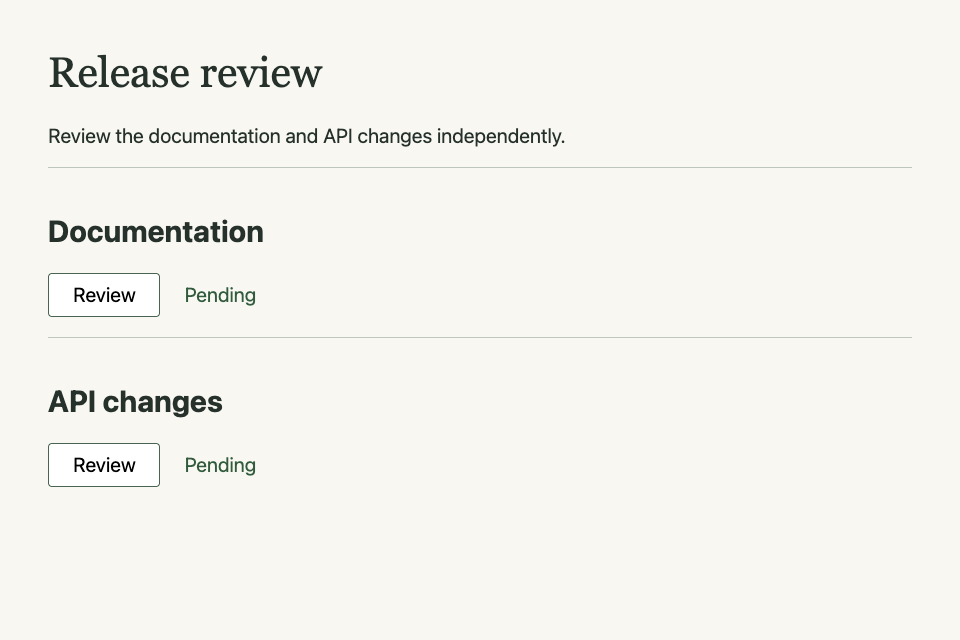
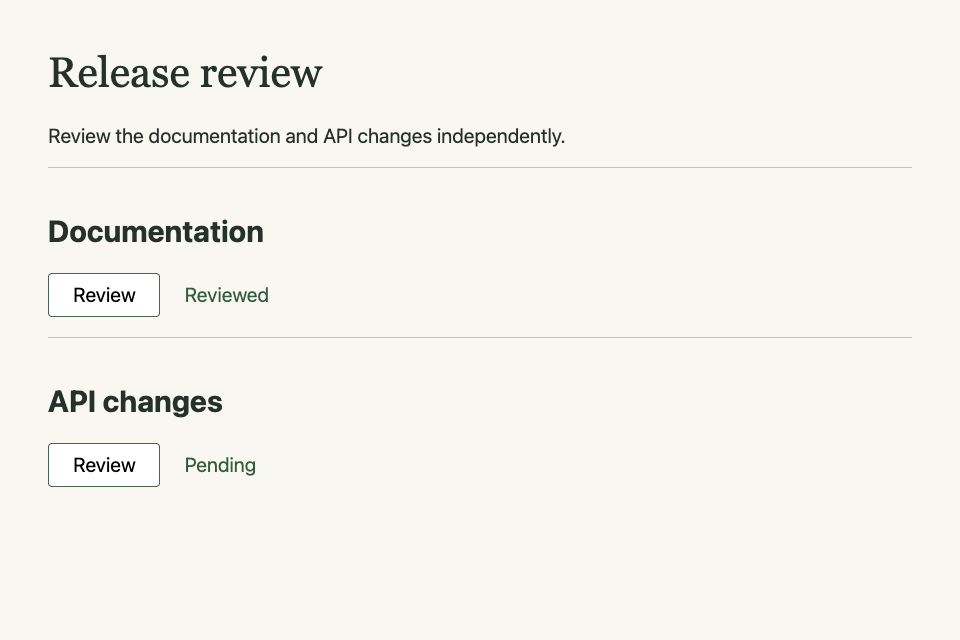
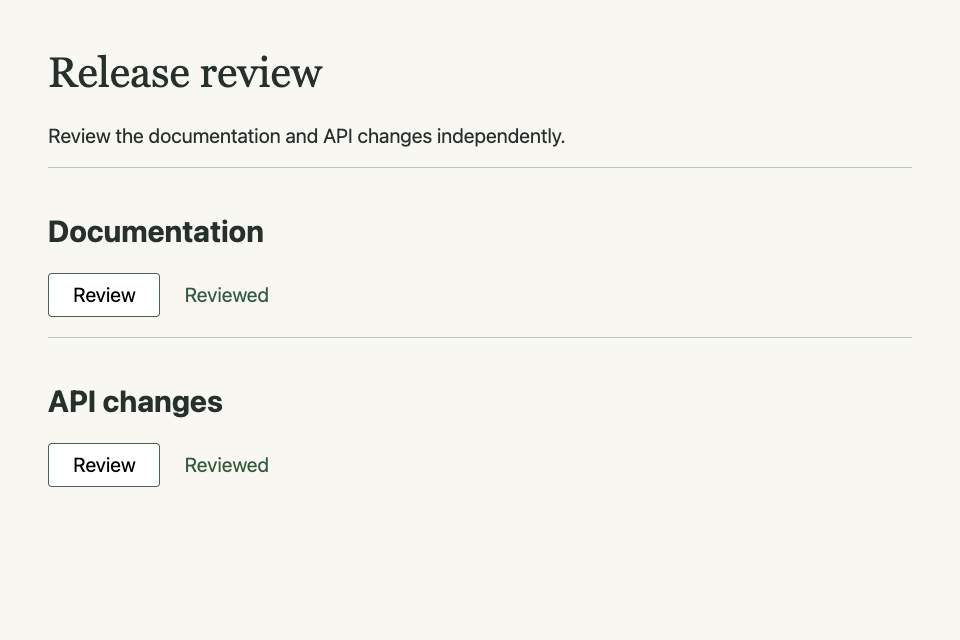
Captures that differ by something other than a version, such as the moments of one journey, share a table whose heads name each column's and each row's value once. Open a capture: Image preview names it by its column and its row.
| Opened | Documentation reviewed | API changes reviewed | |
|---|---|---|---|
| Release review |
|
|
|
This row draws its own frame and declares that its items keep their margins. Both paragraphs start at the same height and leave equal space below them. Narrow the window to stack them: each item keeps the same spacing when the row wraps.
Preview checks run before the release.
Delivery checks run after the release.
lf-pane
A page whose work is a set of regions puts
layout-workspace on main: the page fills the
window, and each pane's body scrolls on its own under the pane's header
and above its footer. The window below is such a page. Open its command
trace: the evidence scrolls inside its pane, and the page and the decision
under the follow-ups stay where they are. In a window too small to hold
the panes, each takes its content's height and the page scrolls, and on a
phone they stack.
The candidate changes cache keys, receipts, and settlement jobs.
The cache migration is the only change that rewrites stored data.
The rehearsal copied 8,412 active keys and preserved every value.
copy --source cache-v1 --target cache-v2 --active-only
verify --source cache-v1 --target cache-v2 --compare values
switch --readers checkout-api,orders-apiRead /items from the host's example connection. A host grants its HTTPS origin and credential with leaf connection bind; this page has no grant by default. Pressing Read reports the missing grant, or displays the upstream status and text once connected. Each read consumes one request from its allowance; the result is not saved.
No HTTP read requested.
The GitHub discoveries page composes this capability with LLM generation. Its queries and editorial logic belong to the page; its saved stories work without a connection.
Press Generate to ask the host's model for a five-word headline about a library opening on Sundays. The response appears below with the model's name. A page without an active Codex, Claude Code or Pi claim reports that a claim is required. Each press can incur model usage; the result is not saved.
No generation requested.
lf-text-document · lf-num
lf-text-document
The document follows its source's current value. Its caption names the captured file and line range. The source uses the same numbered, syntax-colored presentation as a diff; selecting it copies only source.
lf-text-document
Switch between the rendered release note and its exact source. Use the arrow keys on the tabs, then Tab into Preview and scroll through the code example: the focus border stays at the viewport's edges. Reloading keeps your selected view; a new source value updates both views.
lf-text-document
The rule below is written into the page, not bound to a source. Preview reads it rendered; Source shows its exact Markdown. Select words in the preview and comment on them.
Add a line under Unreleased for every change a user can see, and name the
flag or command it touches, such as --config.
Add a line under **Unreleased** for every change a user can see, and name the
flag or command it touches, such as `--config`.
lf-text-document
Press Update document to publish a new release note. Preview and Source read the same output; updating it keeps your selected view.
lf-num
This Num stores
page check reports that the measurement
is behind its source.
Open the versions menu and press “Compare” beside v1. The
“Change” control appears by the edited passage and opens its text diff
inline.
The sample walk follows the river to the footbridge.
lf-board · lf-column · lf-card
Drag the card to “Tried”, use its grip with Enter and the arrows, or tap a destination on a phone. “Saved”, “Delivered”, and “On it” report the agent workflow. A refused send offers “Retry” and “Cancel”.
This board has more columns than the page has room for, so it scrolls sideways. Scroll it: the content fades at each edge with more beyond it, the right edge at first, both edges while crossing, and the left edge at the end. Leaf draws these fades because the browser's own scrollbar shows nothing until something scrolls it. The code block and the diagram above hold everything they have and show no fade.
To ask for a refinement, comment on the sample that shows it and say what should change. Plain experiment clicks do not request implementation work.
Move the card, submit a draft, or add an option above. Run
leaf page state PAGE against this preview's page directory.
Its content keeps your exact words, selected options, and card order;
source locations and edit routes distinguish authored content from user
decisions and captured data. Change unrelated source wording and inspect
again: those user choices survive without copying them into HTML. Add a
thread id, leaf page state PAGE ID, to inspect a frozen
thread.
lf-sample · lf-suggestion · lf-old · lf-new
Each sample below is a complete Leaf page running the production components and transitions. Do what its caption asks and watch the page answer. What you do stays in that sample's own log; “Reset” starts it again, and nothing reaches this page. To move a card, drag one on the delivery board.
Press the suggestion's Accept check (✓) above the changed words. Leaf folds away the retired wording and leaves the sentence in its settled state.
proposed release note
The importer now
Select the sentence about the agenda, then press c or click the Comment field that appears. Type a comment and press Enter: the field becomes an inline thread whose controls grow around your words in their original place.
review note
The sample agenda has room for one more topic.
Press Threads in the sample's panel to open the list, open its conversation, then put the view away with its Close button or Escape.
review workspace
The sample agenda has room for one more topic.
These choices use this page's state and Undo.
Press Create sample, choose a delivery, then use Undo in the sample. Remove sample releases its temporary history; creating it again starts fresh. This fixture supplies fixed source and makes no model request.